- File
-
Designs
-
-
All Categories -
Category #1 - New Category
-
My designs
-
- Share
-
Help
-
Quick help
- ctrl+a
Select all objects
ctrl+d Double the activate object
ctrl+e Clear all objects
ctrl+s Save current stage to my design
ctrl+o Open a file to import design
ctrl+p Print
ctrl++ Zoom out
ctrl+- Zoom in
ctrl+0 Reset zoom
ctrl+z Undo changes
ctrl+shift+z Redo changes
ctrl+shift+s Download current design
delete Delete the activate object
← Move the activate object to left
↑ Move the activate object to top
→ Move the activate object to right
↓ Move the activate object to bottom
shift+← Move the activate object to left 10px
shift+↑ Move the activate object to top 10px
shift+→ Move the activate object to right 10px
shift+↓ Move the activate object to bottom 10px Layers are used to work on individual parts of an image while not affecting other parts. They allow you to modify your image, add text, change colors, put two pictures on the same page, and more without modifying your original photo.
All layers which you added to design are displayed on Layers tab. To change the order of layers, just follow ways to do that.To back or forward other layers, just drag and drop them.
Change from Layers tab
Go to Layers tab, change the order of layers from top to bottom to sort them, just drag and drop them to change position
Change from toolbar
Select a layer via design area, click on Arrange Layers iconr on the toolbar then change on Backward or Forward to move the current layer to the front of to back of another one.- We've provided large amount of templates, clip-arts and basic shapes which helps you to design quickly. Templates are pre-designed layouts which you can choose and easily modify to get your own design. Cliparts are collection of objects which can be used to beautify or add an meaning to your design. Shapes helps you create design from scratch, no matter how bad you're with designing our tools will help you make your design vision into reality with ease.
You need to select different base for design according to your requirements, Base options can be found on Bottom Left under Products tab.
Our standard size for various products as below.
- Vertical Banner - 1200 x 400 Pixel
- Square Logo - 2500 x 2500 Pixel
- Infographic Design - 2500 x 2500 Pixel
- Visiting Card - 3.75 x 2.1 Inches
- Vertical Visiting Card - 600 x 1050 Pixel
We have provided various base options so you can select the exact size for your design. If you need a square logo you need to select square plain template and same goes for visiting card, banners and logo designs.
- Once you've finalized your design using your design editor tools, you can Print or Download your design to your computer. For that locate the Print option on the top header, which has option to direct print or download your design into any specified size. You can also save the design to your account and download or modify it later. This all for FREE
Copyright © 2019 Byteknight Creations
All Rights Reserved.Powered by Lumise version 2.0.1
-
- Shop
- Undo
- Redo
- 0.0
-
My Cart
- Back To Shop
- Design
- Templates
- Cliparts
- Text
- Shapes
- Drawing
- Layers
- Images
- Product
Click or drag to add text









Free drawing mode
Bug Reporting
Please let us know if you find any bugs on this design tool or just your opinion to improve the tool.
Tips: If you want to send content with screenshots or videos, you can upload them to imgur.com or any drive services and put links here.
-
Start designing by adding objects from the left side
- All selected objects are grouped | Ungroup?
- Group objects Group the position of selected objects
-
-
Fill options
Save this color
-
- Create QRCode
-
Options
-
Automatically align the position of <br>the active object with other objects -
ON: Keep all current objects and append the template into<br> OFF: Clear all objects before installing the template -
Replace the selected image object instead of creating a new one
-
- Replace image
- Crop
-
Mask
-
Select mask layer
-
-
Remove background
-
Remove background
-
Deep:
-
Mode:
-
-
Filters
-
Filters
-
- Original
- B&W
- Satya
- Doris
- Sanna
- Vintage
- Gordon
- Carl
- Shaan
- Tonny
- Peter
- Greg
- Josh
- Karen
- Melissa
- Salomon
- Sophia
- Adrian
- Roxy
- Singe
- Borg
- Ventura
- Andy
- Vivid
- Purple
- Thresh
- Aqua
- Edge wood
- Aladin
- Amber
- Anne
- Doug
- Earl
- Kevin
- Polak
- Stan
-
Brightness:
-
Saturation:
-
Contrast:
-
- Clear Filters
- Click then drag the mouse to start drawing. Ctrl+Z = undo, Ctrl+Shift+Z = redo
- QRCode text
-
Fill options
-
Fill options
Save this color
-
Transparent:
-
Stroke width:
-
Stroke color:
-
- Ungroup position
-
Arrange layers
-
Position
-
Object position
Lock object position:
-
Center vertical
-
Top left
-
Top center
-
Top right
-
Center Horizontal
-
Middle left
-
Middle center
-
Middle right
- Press ← ↑ → ↓ to move 1 px, <br>Hit simultaneously SHIFT key to move 10px
-
Bottom left
-
Bottom center
-
Bottom right
-
-
Transforms
-
Rotate:
-
Skew X:
-
Skew Y:
-
Flip X:
Flip Y:
Free transform by press SHIFT+⤡
-
-
Font family
-
Edit text
-
Edit text
-
-
Font size:
-
Letter spacing
-
Line height
-
-
Text Effects
-
Text effects
-
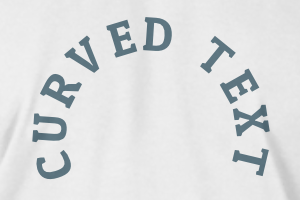
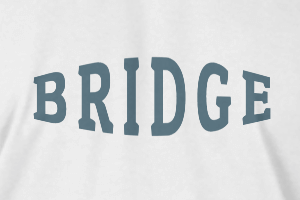
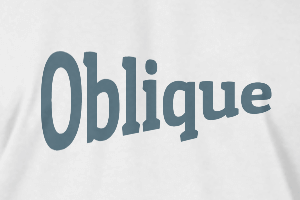
-
Radius
-
Spacing
-
Curve
-
Height
-
Offset
-
Trident
-
-
Text align
- Uppercase / Lowercase
- Font weight bold
- Text style italic
- Text underline